Mahmudul Hossain
Google Ads & Conversion Tracking Specialist
1 October 26
7 min read
Illustration by Fsdm Mahmudul
If you run Google Ads but cannot say which ads bring in sales, you are guessing with real money. Google Ads conversion tracking fixes that. It tells Google which clicks turned into a purchase, a lead form or a phone call.
This guide walks you through the setup step by step, in plain English. By the end, you will know what to track, how to install it, and how to check it actually works. If you would rather hand it over, that is exactly what our conversion tracking service does.
A "conversion" is any action you care about after someone clicks your ad. For a shop, that is usually a purchase. For a local business, it might be a booking, a form or a call.
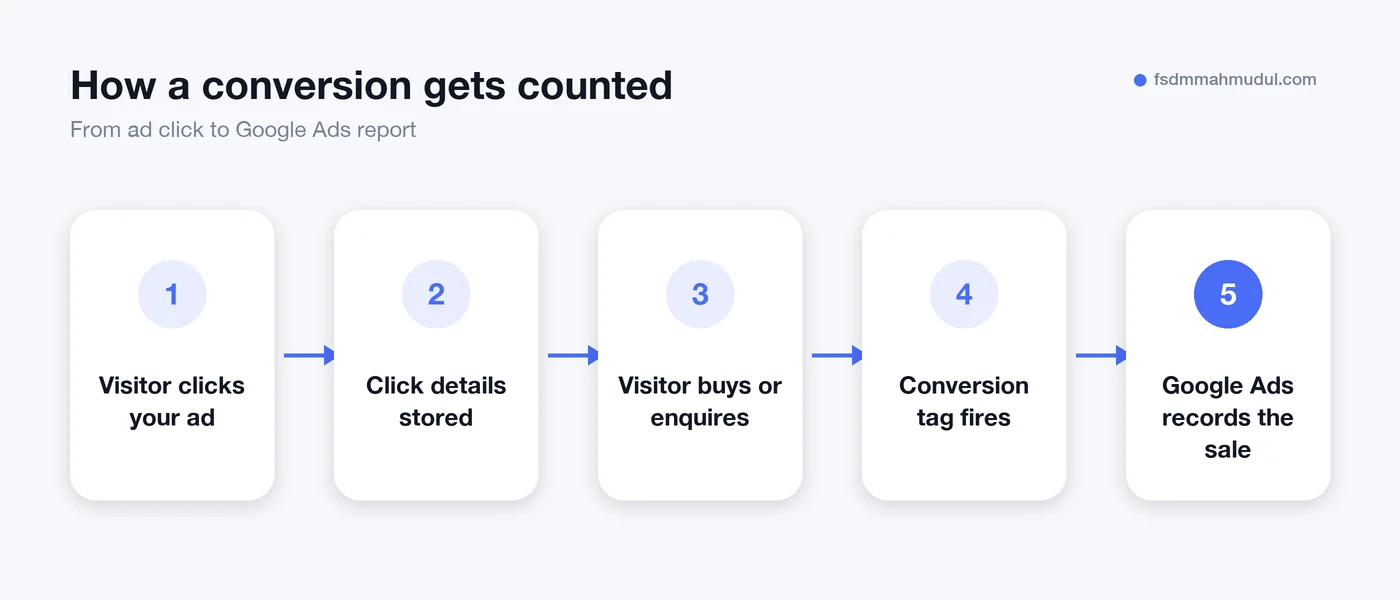
When a visitor completes that action, a small piece of code called a tag fires on your site. It sends a message back to Google Ads saying "this click turned into a sale". Google then uses that data in two ways:
Without tracking, smart bidding is flying blind. It optimises for clicks, which are cheap, instead of sales, which matter.
Most messy accounts start with tracking too much, not too little. Pick one or two actions that are real business results. Everything else can be tracked as "secondary", which means Google records it but does not optimise for it.
| Business type | Primary conversion | Good secondary actions |
|---|---|---|
| eCommerce shop | Purchase (with order value) | Add to cart, begin checkout |
| Local service business | Booking or lead form submit | Calls from ads, directions clicks |
| B2B or agency | Qualified lead form | Brochure download, newsletter sign-up |
You will also need three things ready:
There are three common ways to install it. Use the Google tag (gtag) directly on your site, use Google Tag Manager, or import key events from GA4. GA4 now calls conversions "key events". For most businesses, our team recommends Google Tag Manager. It keeps all your tags in one place and makes changes easier later.
These settings change how your data looks, so do not skip them.
Save it. Google will now show you a Conversion ID and a Conversion label. Copy both.
Do not publish yet. Test first.
Testing is where most DIY setups fall down. A tag that "looks installed" can still send the wrong value or fire twice.
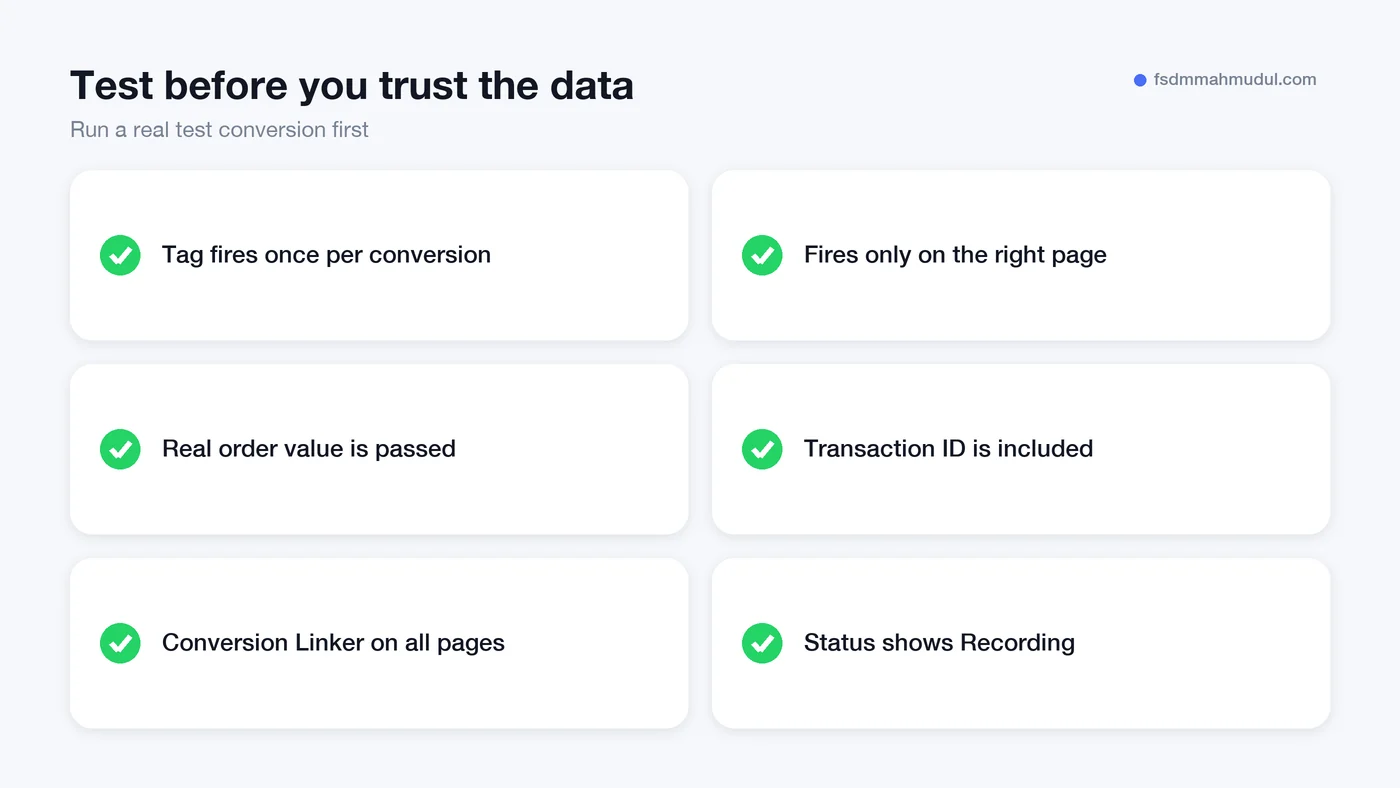
We audit a lot of accounts, and the same problems come up again and again. Each one quietly teaches Google's bidding the wrong lesson.
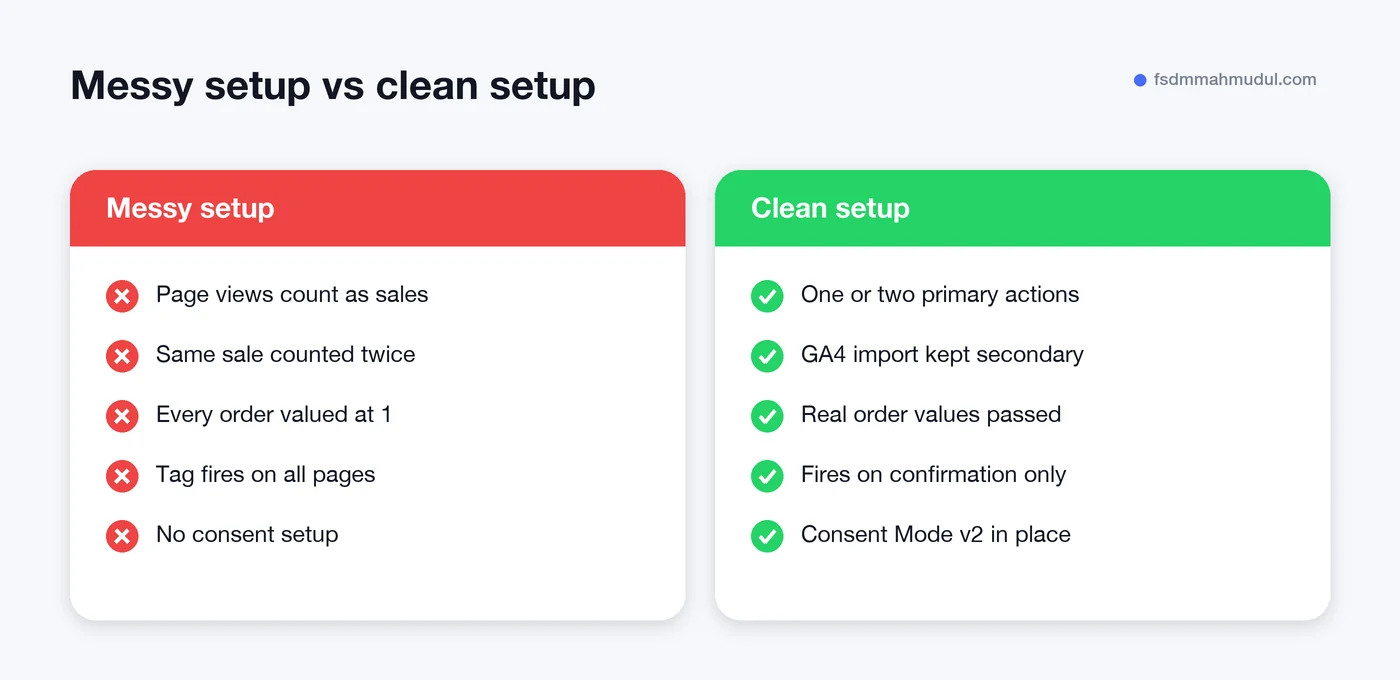
Basic tracking relies on cookies, and browsers block more of them every year. That means some real sales never get matched back to the ad that caused them.
Enhanced conversions fill part of that gap. They send a secure, scrambled version of the customer's email address with the conversion, so Google can match it to a signed-in user. We cover it fully in our guide to turning on enhanced conversions for Google Ads. Once basic tracking works, it is usually the next step.
For a sense of what clean tracking makes possible, see our Google Ads results in the portfolio, including €109K in tracked revenue from €11K ad spend.
Once the tag is live, the status usually changes within a few hours, and can take up to a day. Smart bidding then needs a few weeks of steady conversion data before it performs at its best. Avoid big changes during that learning period.
Both send the same data to Google Ads. Google Tag Manager is easier to manage when you also run GA4, the Meta Pixel or other tools. If your site has very few tags and will stay that way, the Google tag on its own is fine.
Yes, you can import GA4 key events into Google Ads. It is quick, but the data can arrive later and may differ from a native Google Ads tag. Many accounts use the Google Ads tag as primary and keep GA4 imports as secondary, but never count both as primary.
If any of your visitors come from the European Economic Area, yes. Google requires it to keep using their data for ads and measurement. It also lets Google model some of the conversions you cannot observe directly.
Good conversion tracking is the foundation of every profitable Google Ads account. Without it, even a great campaign looks like a guess.
Our team has set up and repaired tracking for 50+ clients over 5+ years. If you want a second pair of eyes, book a free tracking and ads audit and we will show you exactly what is and is not being counted.
We can review your current setup and show which issue should be addressed first.
Get My Free AuditHere are answers to the questions people ask us most. Can't find yours? Message us and we usually reply within an hour.

We review your campaigns, tracking or conversion journey, then show you the main issue limiting performance, its business impact and a practical next step.
Yes. Most clients start from $1,000 a month in ad spend. We will tell you honestly if your budget is too small.
A dedicated specialist from our team runs your account day to day, and Mahmudul oversees the strategy and reviews the results. You always have one point of contact, so you never have to chase anyone.
No. Work is month to month and you can cancel any time.
Always. Your accounts, campaigns and tracking stay yours, even if we stop working together.
Wasted spend usually drops in the first 2 weeks. Steady growth shows by month 2 or 3.
Clients in Bangladesh, the US, UK, Canada, Australia and Europe. Our team works across time zones.
Request a free audit or message us on WhatsApp. We confirm the audit is a good fit, share our findings or invite you to a review, then agree the next step with Mahmudul.
Yes. Our tracking specialist checks that every sale, lead and call is counted correctly, because good ads need good data.
Yes. We send clear, simple notes your developer can follow, or our own developer makes the changes for you.
With a team. Mahmudul leads a small group of specialists in ads, tracking, page design and website development. Each person works on what they know best, and Mahmudul checks the work before it reaches you. If someone is away, another team member covers for them, so your work never stops.
You get a simple monthly report showing what we spent, what we got back and what we will do next. Mahmudul reviews every report before it is sent.